
How to Download TikTok Videos With or Without the Watermark
TikTok actually has its own Save button. Here's exactly how it behaves, where it doesn't show up at all, and what it takes to get a clean copy, or a watermarked one, your choice.
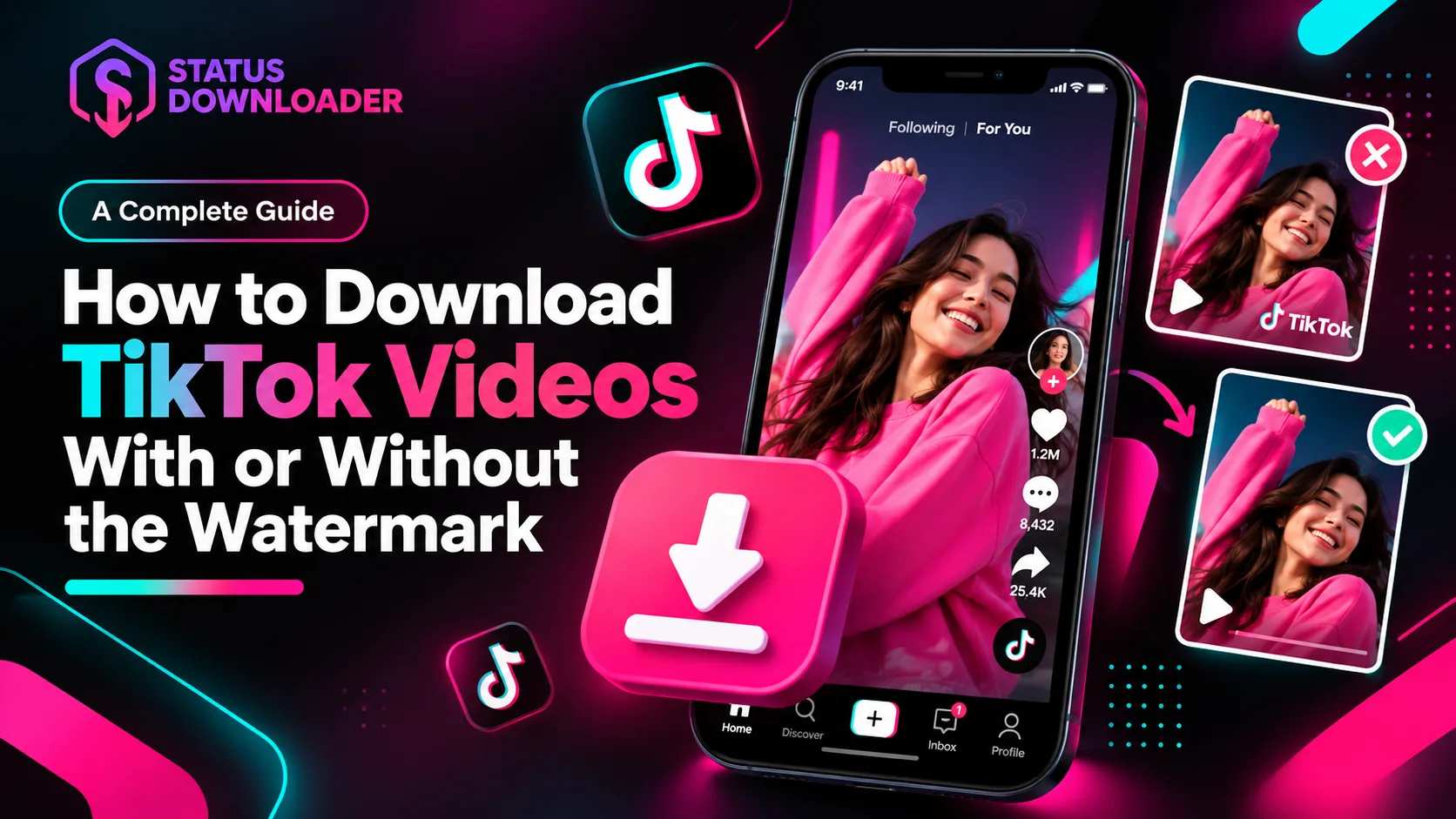
TikTok actually has its own Save button. Most people never go looking for a third-party tool because they assume there isn't one, there's clearly a share menu, clearly a save option sitting right there. The problem isn't that TikTok hides it. The problem is what you get once you actually use it, and where it doesn't show up at all.
This guide walks through exactly how TikTok's own save option behaves, why it's inconsistent, and what it actually takes to get a clean, watermark-free copy, or a watermarked one, or just the audio, or a photo slideshow, whichever you actually need.
Why TikTok's Save Button Isn't the Full Answer
On the desktop website, there's no Save option at all. TikTok disables it completely in the browser, no matter what account you're logged into or what settings you check. It simply isn't there.
On the mobile app, the Save button does exist, but only conditionally. It only appears if the person who posted the video has turned downloads on for their account. A lot of creators leave that setting off, sometimes on purpose, sometimes without realizing it's even a setting. If it's off, the button disappears for everyone, there's no workaround from inside the app.
Even when the button is available and you use it, what you get isn't a clean file. The saved video carries the TikTok logo, the poster's username, and sometimes additional watermarking tied to whatever sound or effect was used. That's fine if you only ever planned to rewatch it yourself inside your camera roll. It becomes a real problem the moment you want to post that video somewhere else, since most platforms don't love obviously TikTok-branded content showing up on their feed.
Downloading a Video, With or Without the Watermark
This is the core use case, and the reason most people end up looking for a TikTok downloader in the first place. The actual video file is the same either way, with watermark or without, you're just choosing which version to keep.
HOW IT WORKS, STEP BY STEP
- Find the video on TikTok and copy its link. On desktop, this comes from the Share panel, Copy Link. On mobile, tap the Share icon on the video itself and select Copy Link from the options that appear.
- Paste the link into the downloader.
- A preview loads, showing the video, the creator's handle, and the caption, confirming the link pulled the right content before you commit to anything.
- A dropdown shows the available quality options along with a "with watermark" choice if you want the version with the logo and username included. The main Download button saves the clean, watermark-free version by default, and sits right beside a separate Download Audio (MP3) button for grabbing just the sound.
- Download, and the file saves to your device the same way any browser download does, ready to use immediately, whether that means rewatching it or reposting it somewhere else.
Saving a Photo Slideshow
Not every TikTok post is a video. Slideshow posts, a sequence of photos set to music, work differently enough that they're worth their own explanation.
HOW IT WORKS, STEP BY STEP
- Copy the link to the slideshow post the same way you would for a regular video.
- Paste it into the downloader. The preview will identify it as a slideshow rather than a standard video, since the two are handled differently behind the scenes.
- Each photo in the slideshow appears individually, with its own separate download button. There's no single click that grabs the whole set at once, you go through and save each image you actually want, one at a time.
- Photos save as JPG files, exactly as posted. Unlike videos, there's no watermark-removal option here, TikTok doesn't stamp a logo onto individual slideshow images the way it does with video.
- If the slideshow has background music, that's still available as a separate audio download, the same as it would be for a regular video.
Getting Just the Audio
TikTok audio moves almost as fast as the videos themselves, a sound gets used in thousands of videos, becomes genuinely hard to track back to its original source, and then falls out of rotation just as quickly. If what you actually want is the sound rather than the footage, there's no need to download the whole video just to extract it afterward.
HOW IT WORKS, STEP BY STEP
- Paste the link to any video or slideshow that has sound.
- Once the preview loads, look for the audio-only option, it sits alongside the video download rather than requiring a separate tool or page.
- Download it directly as an MP3, keeping the video or photos out of it entirely if that's all you wanted.
If a video genuinely has no sound, or the creator muted it before posting, this option simply won't appear, there's nothing for the tool to pull if nothing was there to begin with.
Choosing Video Quality
Not every TikTok video offers the same range of resolution options. What's actually available depends entirely on what the original upload supported, not something a downloader can add on top of a lower-quality source.
When more than one resolution is offered, you'll see those options before downloading, so you can pick based on what you actually need, a smaller file for quick sharing, or the highest quality available for keeping a proper archive copy.
A Few Things Worth Knowing
Duets & Stitches
Work the same way as any other public video. The combined clip is posted as its own video with its own link, so pasting that link downloads it exactly as it appears, both creators' content included.
Private Accounts
Off-limits, and should be. If an account isn't public, its videos aren't accessible to a downloader any more than they'd be to someone who isn't an approved follower.
LIVE Streams
Can't be downloaded while actually live. Once the broadcast ends, it only becomes downloadable if the creator chooses to keep the replay up afterward.
Why This Actually Matters
A clean, watermark-free copy matters most the moment you want to repost something somewhere that isn't TikTok. Nobody wants a clip they're sharing on their own page to visibly announce it was pulled from a different app. Creators also run into this with their own content, posting constantly, rarely keeping a proper archive of their own videos the way a studio or editor normally would, and TikTok's own interface doesn't make retrieving your own past uploads particularly easy either.
There's also the simple matter of things disappearing. Videos get taken down for copyright claims, policy changes, or because the creator deleted their account entirely, and once that happens, whatever wasn't already saved is just gone.
Everything above, from one tool
Whichever reason brought you here, reposting, archiving, or just wanting to keep a specific video before it disappears, the TikTok Video Downloader handles all of it: video with or without the watermark, photo slideshows, audio-only downloads, and a choice of quality, all from a single pasted link.
Whichever version you need, watermark or clean, video or audio, the process starts the same way: copy the link, paste it in, and choose.