How to Download Instagram Content: Stories, Reels, Posts, Highlights and Private Accounts Explained
Instagram was never really built around the idea of keeping things. Here's how each content type actually works, and what it takes to save a proper copy of it.
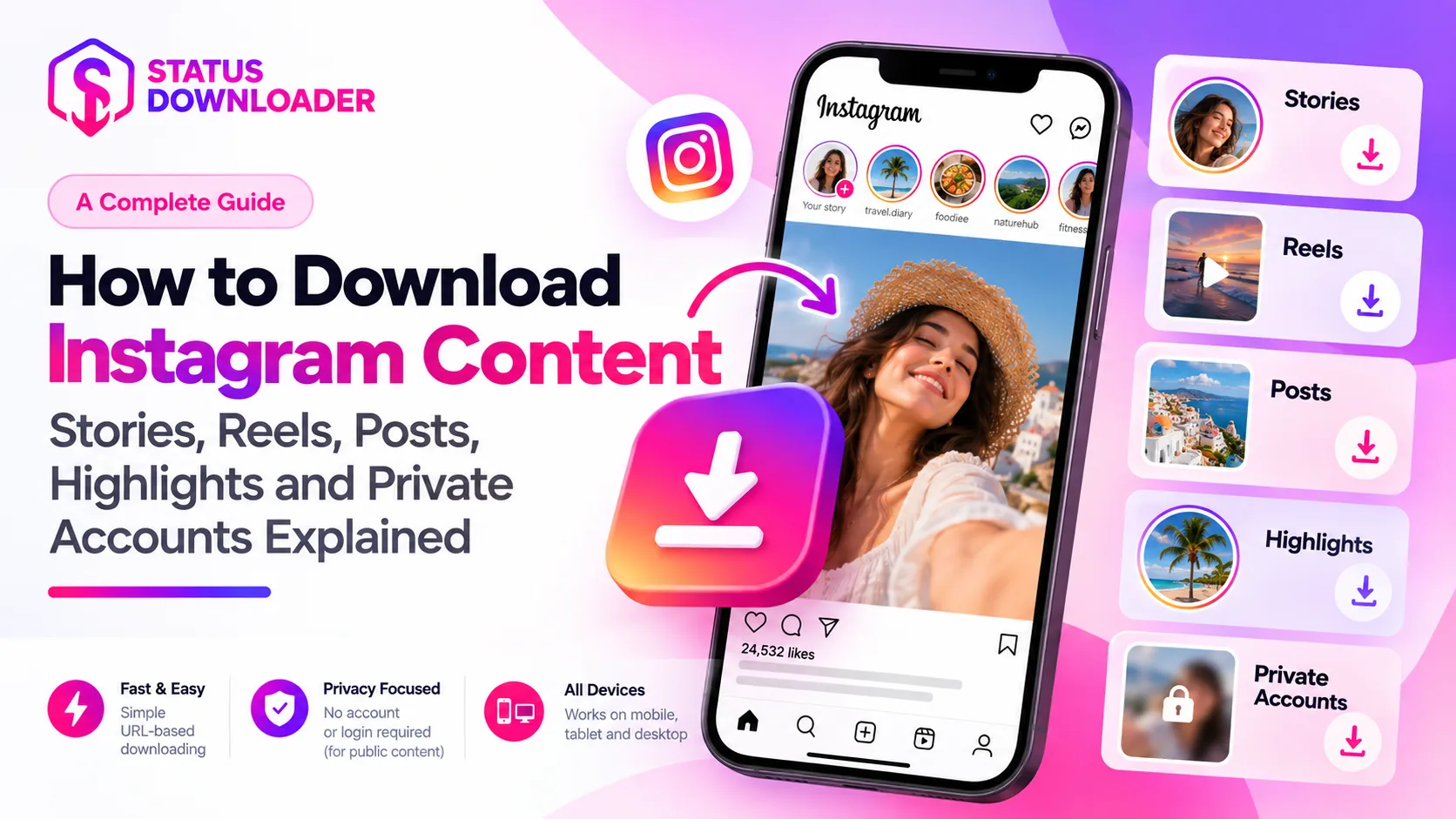
Instagram was never really built around the idea of keeping things. Stories vanish after 24 hours, Reels get buried under whatever's trending that day, and even regular posts can disappear the moment someone deletes their account or makes it private. If you've ever gone looking for something you saw last week and come up empty, you already know the problem this guide is about.
This isn't a single-feature walkthrough. Instagram content comes in a handful of genuinely different formats, each with its own quirks, and "downloading Instagram content" means something slightly different depending on which one you're dealing with. Here's how each actually works, and what it takes to save a proper copy of it.
Stories: The Original 24-Hour Countdown
Stories are Instagram's most time-sensitive format by design. A photo or video goes up, stays visible for 24 hours, and then it's gone, unless the person who posted it saved it to their own Highlights first. There's no built-in way to download someone else's Story from inside the app. Screenshotting works in a pinch, but it strips out video entirely and never captures sound properly.
If the account posting is public, this is the most straightforward content type to save: paste the profile link or the Story itself, and you get the actual file, not a screenshot. If the account is private, the process is a little different, more on that below.
HOW IT ACTUALLY WORKS, STEP BY STEP
- Open the Story on Instagram and copy the link from your browser's address bar, or use the Share option if you're on mobile. If you don't have a direct link to a specific Story, the account's username works too, just type it in instead.
- Paste whatever you copied into the downloader. If you used a username rather than a direct Story link, the tool pulls whatever Stories that account currently has active, since a username on its own doesn't point to one specific Story.
- A preview loads showing the photo or video before you commit to downloading anything, useful for confirming it's actually the one you meant to save, especially if the account has posted several Stories recently.
- Press download. If it's a video with sound, you'll typically also see a separate option to save just the audio as an MP3, in case that's all you actually want.
- The file saves to your device's Downloads folder, same as any other file your browser downloads.
Reels: Short-Form, Fast-Moving, Easy to Lose
Reels don't disappear the way Stories do, but they might as well. Instagram's algorithm surfaces what's relevant right now, and a Reel you saw once rarely resurfaces on its own later. Unless you follow the account and happen to scroll back far enough, finding it again usually means remembering who posted it and searching their profile directly, if you can even recall who that was.
Saving a Reel the moment you see it solves this. Public Reels can be downloaded the same way as any other public video post, paste the link, and the file is yours, independent of whether the algorithm ever shows it to you again.
HOW IT ACTUALLY WORKS, STEP BY STEP
- Tap the three dots above the Reel, or to the side of it depending on your layout, and select Copy Link. On a Reel specifically, that menu usually sits on the right-hand side of the screen rather than above the post the way it does on a regular post.
- Paste the link into the downloader's input box.
- Preview the Reel before downloading, this confirms the link pulled the right content, since Reels links can occasionally point to a slightly different version (like a Reel that's been shared or reposted) than the one you intended.
- Choose your format. Most Reels give you a straightforward video download, and if the Reel has music or voice audio, an MP3-only option usually appears alongside it.
- Download, and the file lands in your usual downloads location, ready to watch without needing the app open at all.
Posts: Photos, Carousels and Standard Uploads
Regular posts, single photos, carousels, and standalone video uploads, are the most persistent content type on Instagram. They don't expire on a timer the way Stories do, but they're not permanent either. An account can be deleted, a post can be removed, or privacy settings can change at any time, and whatever was there goes with it.
Carousels are worth a specific mention, since a single post can contain multiple photos or videos in sequence. Depending on the tool you're using, each image typically needs to be saved individually, so it's worth checking whether a carousel returns one file or several before assuming you've got everything.
HOW IT ACTUALLY WORKS, STEP BY STEP
- Copy the post's link, either from the browser address bar if you're viewing it on desktop, or through the Share menu on mobile.
- Paste the link into the downloader and let it load a preview of the post.
- If it's a carousel, the preview typically shows each photo or video in the sequence individually, each with its own download button, rather than one single download covering the whole set. Go through and save each piece you actually want, carousels don't usually bundle into a single file.
- For a single photo or standard video post, one download option covers it. Video posts usually include the same separate audio-only option as Stories and Reels, if there's sound worth keeping on its own.
- Everything saves to your device the same way, no app required, no account needed for public posts.
Highlights: Stories That Outlive the 24-Hour Window
Highlights are what happens when someone decides a Story is worth keeping past its usual expiration. The account owner manually saves it to a named Highlight on their profile, where it stays indefinitely, or until they decide to remove it.
That permanence is useful, but it's not guaranteed. The person who created the Highlight can edit or delete it whenever they want, with zero warning to anyone viewing it. If something in there matters to you, counting on it to stay exactly where it is isn't a safe bet. Saving your own copy means it doesn't matter what happens to the original later.
HOW IT ACTUALLY WORKS, STEP BY STEP
- Open the profile and tap into the specific Highlight you want to save from, then copy the link to that Highlight, or the profile's username if a direct link isn't easily available.
- Paste it into the downloader. Since a Highlight is really a saved collection of individual Stories, the tool treats it that way too, pulling each piece inside it separately rather than as one combined file.
- You'll typically get a download button for every photo and video in that Highlight, so you can go through and grab only the ones you actually want, rather than being forced to download the entire collection at once.
- Download each piece the same way you would a regular Story, with the same audio-only option available for any video that has sound.
Private Accounts: A Different Process Entirely
Everything above assumes the account posting is public. Private accounts work differently, and for good reason. Instagram restricts private content to approved followers only, nobody else can see it, and nobody else can save it. That's the entire point of the privacy setting, and no legitimate tool should try to get around it.
What changes is how you, as an approved follower, actually get a copy of something you're already allowed to view. Since Instagram still doesn't offer a download option even for people with permission, saving private Stories, Highlights, posts and videos requires confirming that permission first, typically by logging into your own Instagram account in the same browser, so the tool can verify you're actually authorized to see what you're trying to download. Nothing about your login or credentials gets stored anywhere in that process, it's your browser confirming access directly with Instagram, not a third party stepping in on your behalf.
This also covers Close Friends content, a narrower list within someone's followers, meant for things they only want a smaller circle to see. The same verification principle applies: you can only save what you're already approved to view.
HOW IT ACTUALLY WORKS, STEP BY STEP
- Log into your own Instagram account in the same browser you're using the downloader in. This step is unique to private content, public downloads don't require it, but there's no way for a tool to confirm you're an approved follower without it.
- Once logged in, the tool generates a temporary secure key tied to that session. This is what actually authorizes the download, not your login itself, which is never stored or sent anywhere beyond confirming access.
- Paste the link to the private Story, Highlight, post or video you want, the same way you would for public content.
- The tool checks whether the account you're logged in as is actually authorized to view that content. If you're not an approved follower, or not on that person's Close Friends list where relevant, it won't be able to retrieve anything, which is the expected, correct behavior.
- If access checks out, a preview loads and you download it the same way as any public content, photo, video, or audio-only where available.
- Keep in mind that secure key doesn't last forever. Logging out, switching accounts, clearing your browser's cookies, or just leaving it idle too long will expire it, at which point you'll need to log in again to generate a new one before downloading anything else.
What Actually Changes Between These, and What Doesn't
Despite the differences above, the core limitation is the same across every format: Instagram doesn't build in a way to keep a proper copy of anything, public or private, temporary or permanent. Screenshots are the only native workaround, and they fail completely for video and audio, and partially for everything else, since a screenshot captures how something looked at one instant, not the actual file.
A dedicated downloader solves this by working directly with the file itself rather than what's rendered on screen. For public content, that's as simple as pasting a link. For private content, it means confirming you're an approved viewer first, then doing exactly the same thing.
Which tool do you actually need?
If you're mostly dealing with public Stories, Reels, posts and Highlights, the Instagram Story Downloader covers all of it from a single tool. If what you need is content from a private account you're already following, or someone's Close Friends list, the Instagram Private Story Downloader is built specifically for that, same idea, just with the extra verification step private content requires.
Instagram Private Story Downloader
Either way, the principle holds: if you can already see it, you should be able to keep it, without racing a 24-hour clock or hoping a screenshot was good enough.